Fever is a new feed-reader from Shaun Inman, the guy who created Mint (The self-hosted analytics app, not the finance site). The concept of Fever is pretty clever – it parses your RSS feeds and works out which articles are the most popular. The UI uses a heat metaphor extensively, and as far as I can tell from my initial review, it has a bit of a learning curve associated with it. Users have to categorize their feeds into “sparks” and “kindling” which combine to produce “hot” items. If a particular article is linked to by various other articles in your “sparks” category, that article becomes “hot” and bubbles to the top of the hot list. The exact way in which it works is a bit of a mystery to me, though it is written in un-obfuscated PHP so it’s more a case of being under-explained at the moment, rather than secret.
I’m not familiar enough with it to give it a fair review, so I’m not going to even try in this post. Instead I’ve just taken a few screengrabs that should give you a rough feel for the app. Here they are:
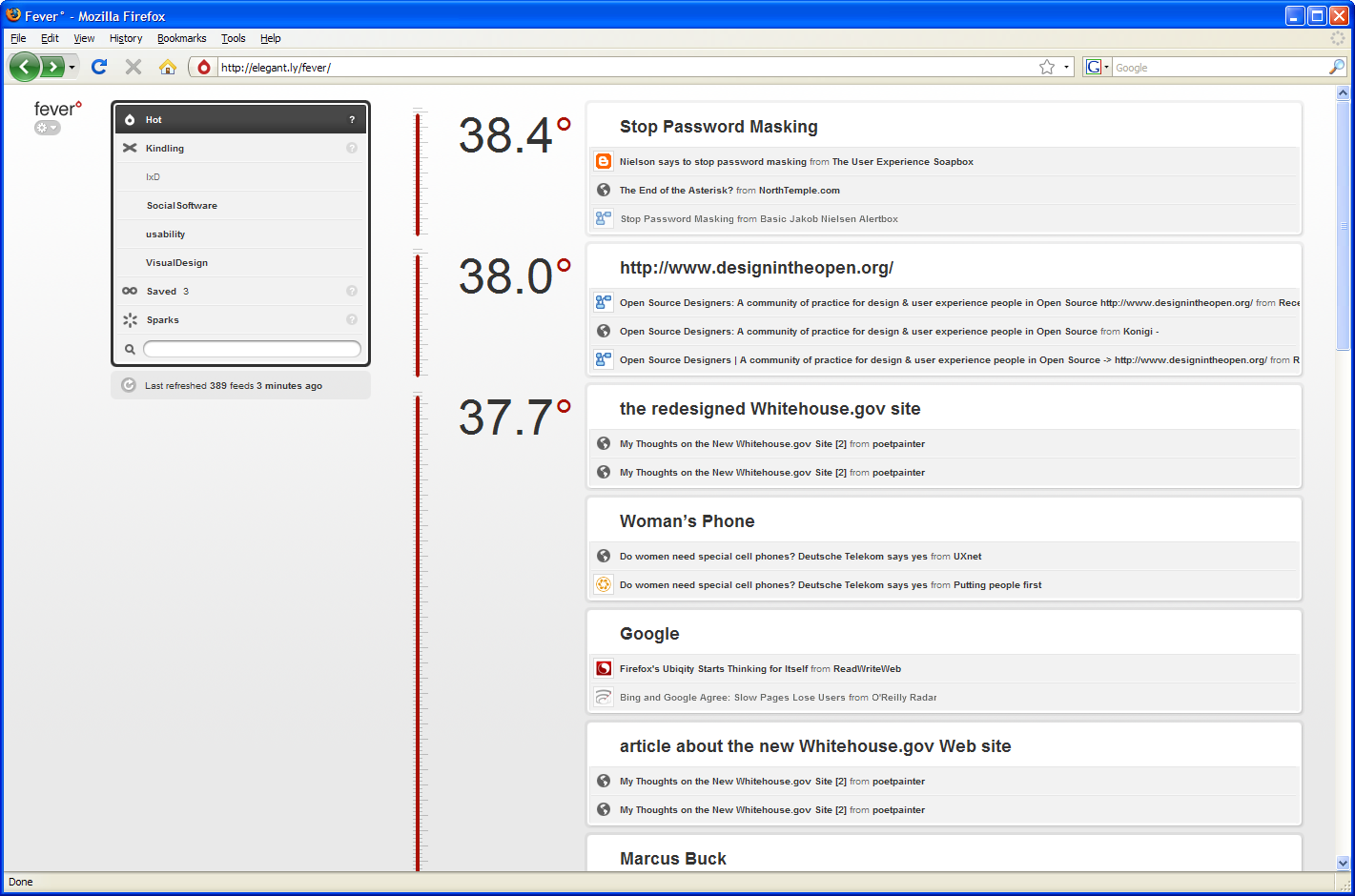
As you can see, Fever needs a lot of screen estate. Although there is an iPhone UI, the full version does not sit well on small laptop screens.

The help tip for the ‘Hot’ area reads: Links from all of your feeds are weighted by frequency and disposition of the linking feed, then ordered by temperature using the normal body temperature of 37° as a base.
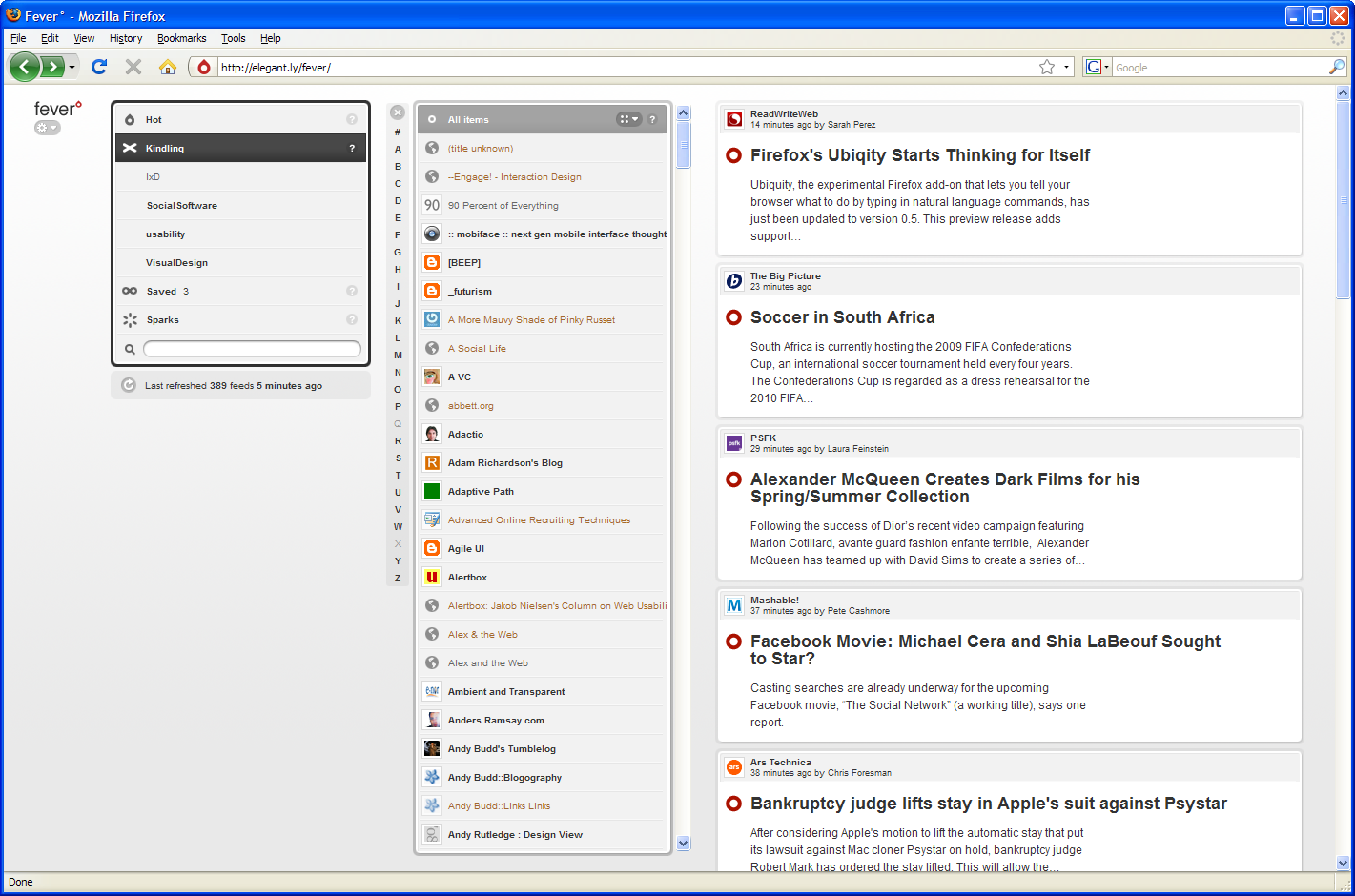
The ‘Kindling’ area provides an alphabetical filter and scroller that are nicely implemented.
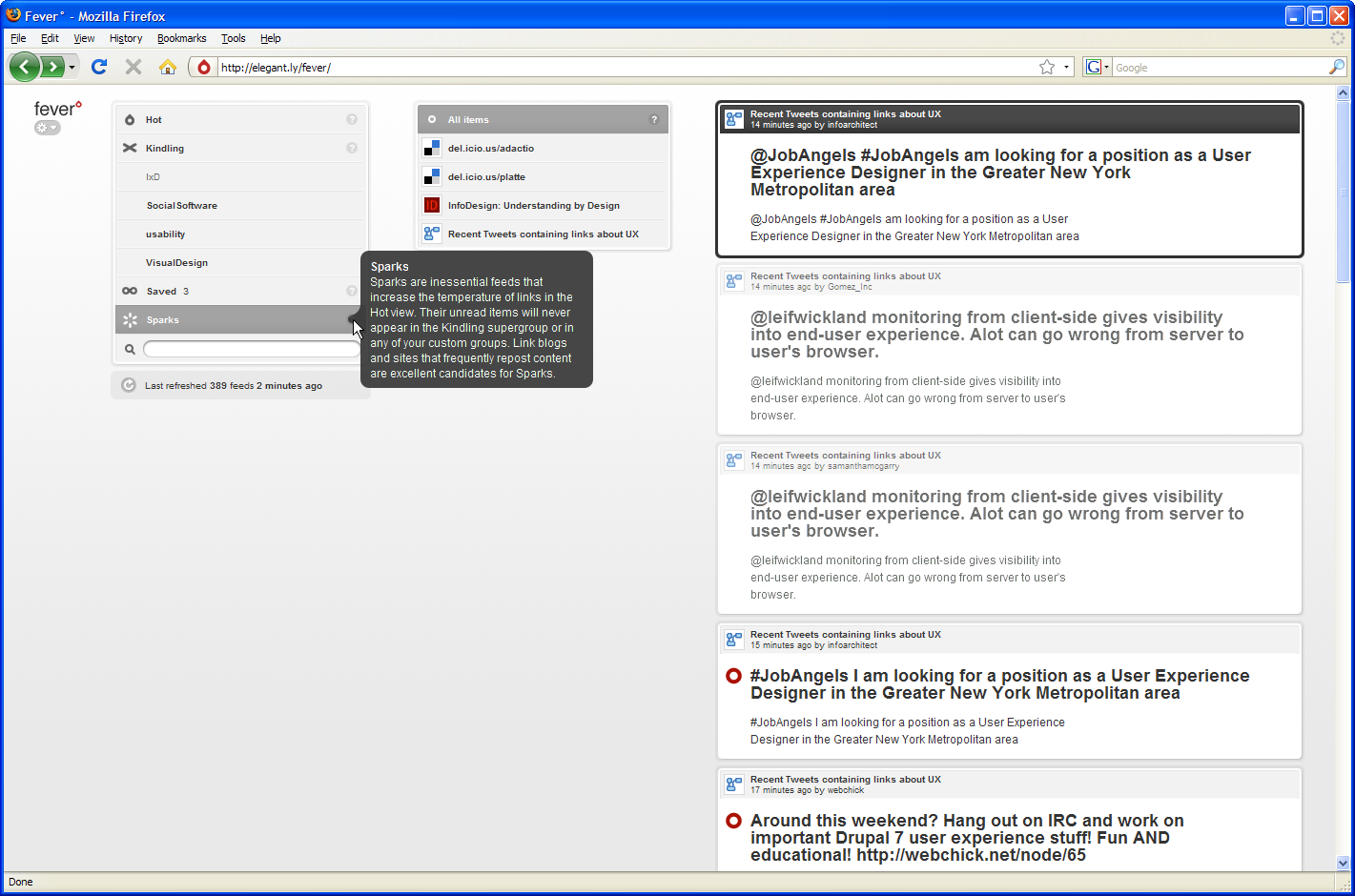
The help tip for the ‘kindling’ area reads: Sparks are inessential feeds that increase the temperature of links in the Hot view. Their unread items will never appear in the Kindling supergroup or in any of your custom groups. Link blogs and sites that frequently repost content are excellent candidates for Sparks.
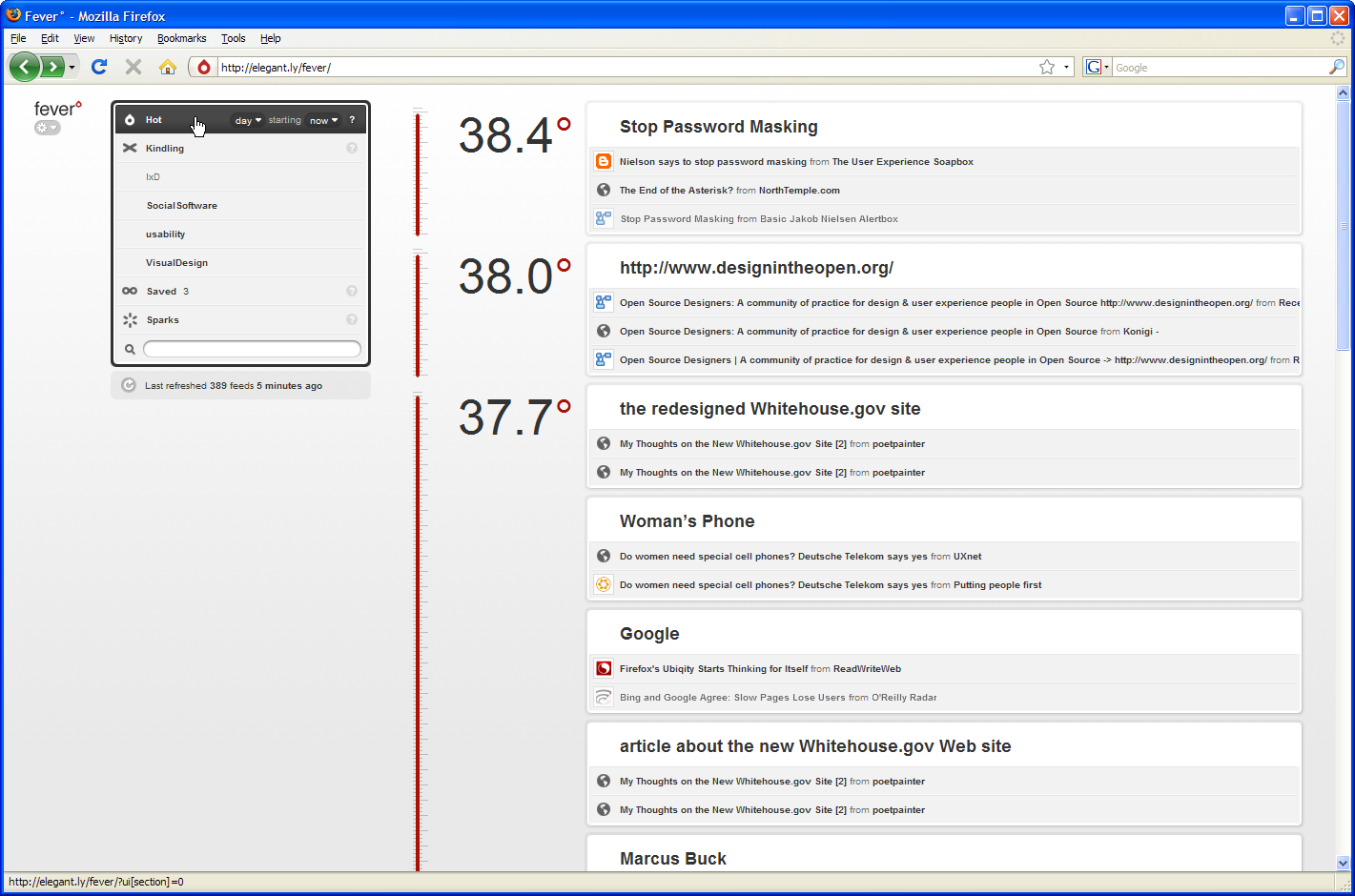
The ‘hot’ area can be filtered by recency (days or week), as shown here.
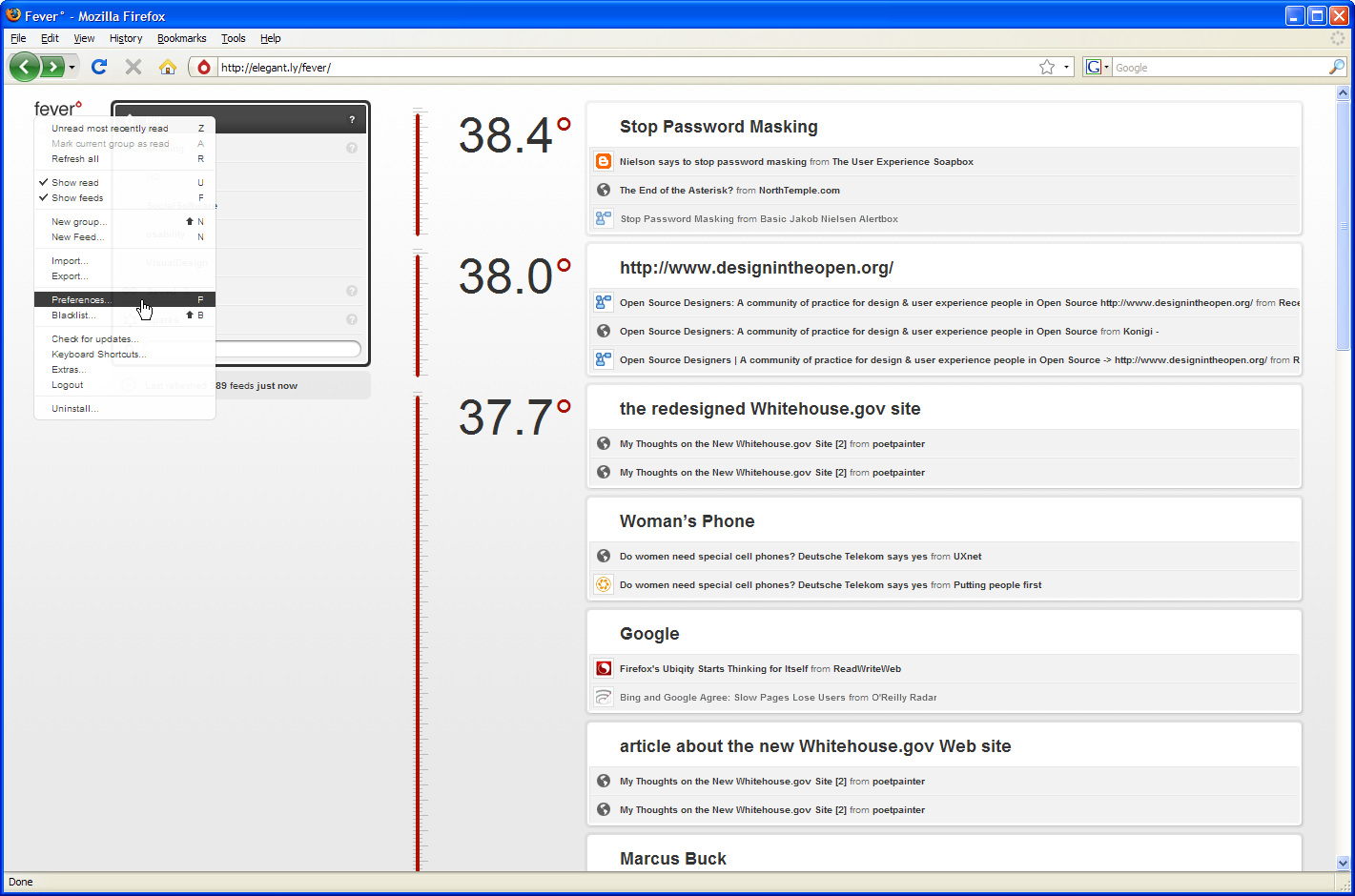
This is the app’s main menu. All the obvious stuff is located in here.
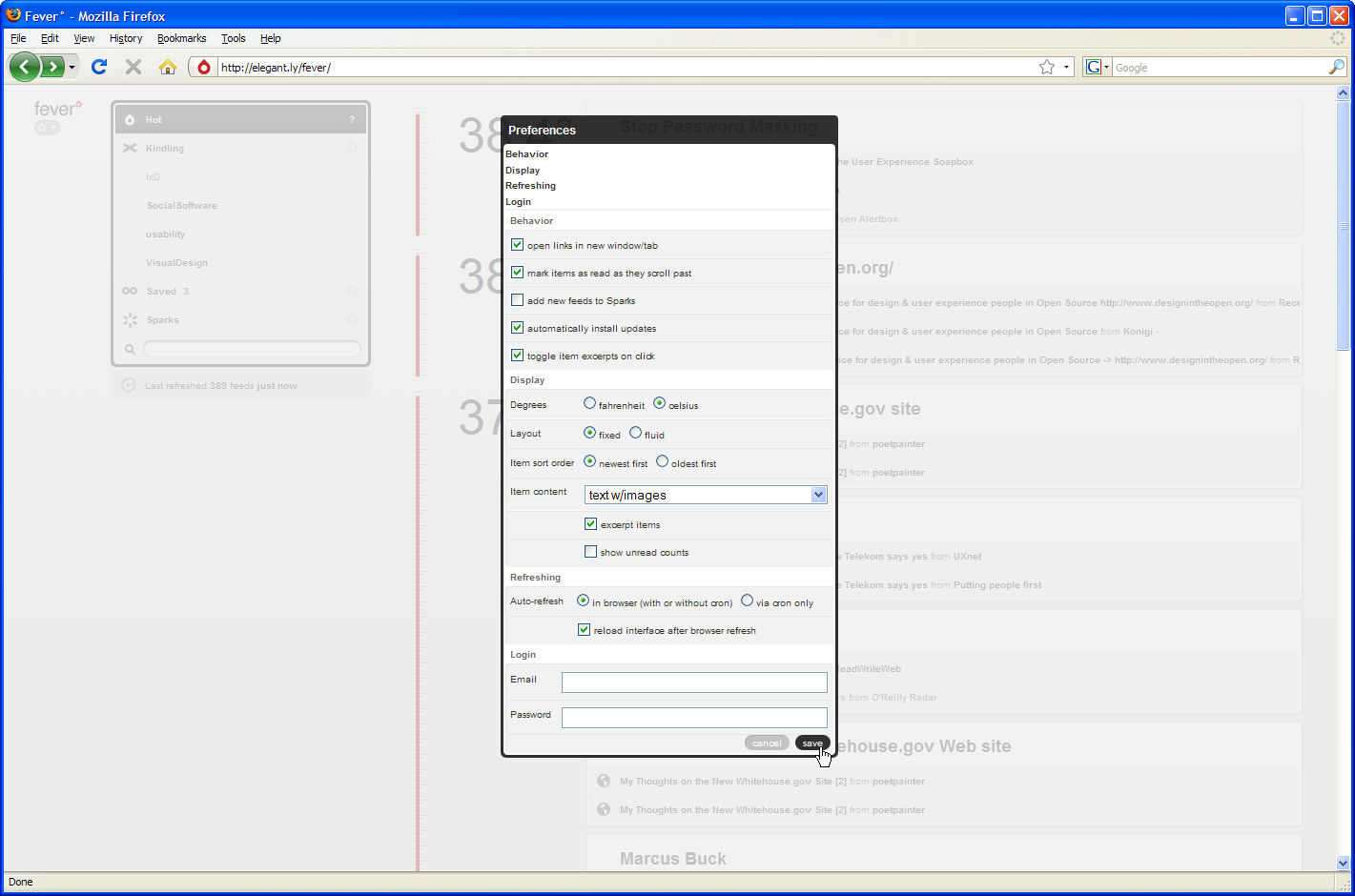
This is the preferences menu. If you want your installation to refresh the feeds automatically, you have to set up a cron job. This is fairly easy, but it constitutes “yet another configuration step”. If Fever runs slowly for you, you only have your own cheap hosting to blame. I installed Fever on a cheap Dreamhost account, and sluggishness is occasionally evident.
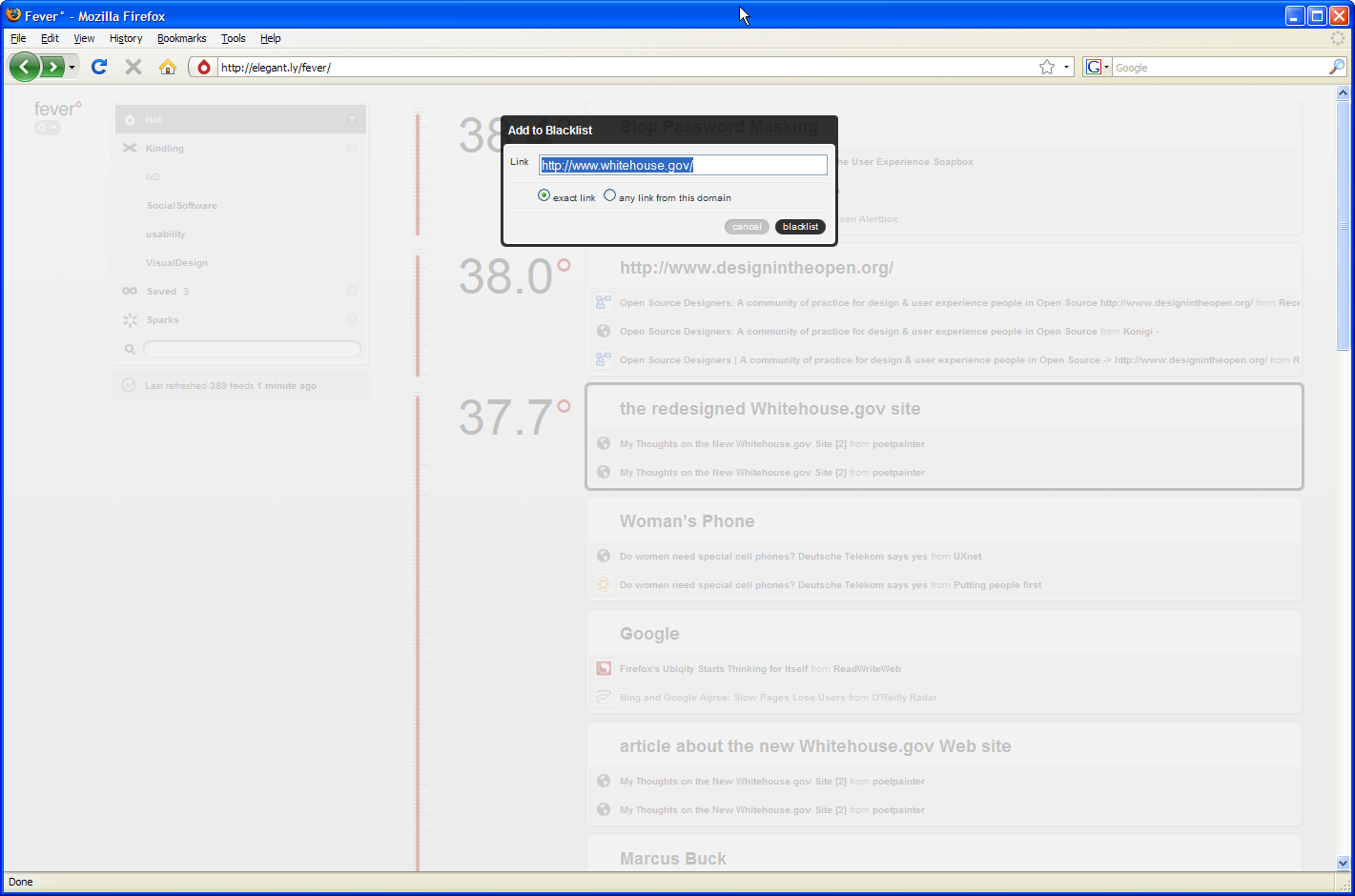
You can blacklist certain sites if you want to prevent them from appearing in your hot area.

Loads of keyboard shortcuts. All different from Google Reader, but probably not too hard to relearn.
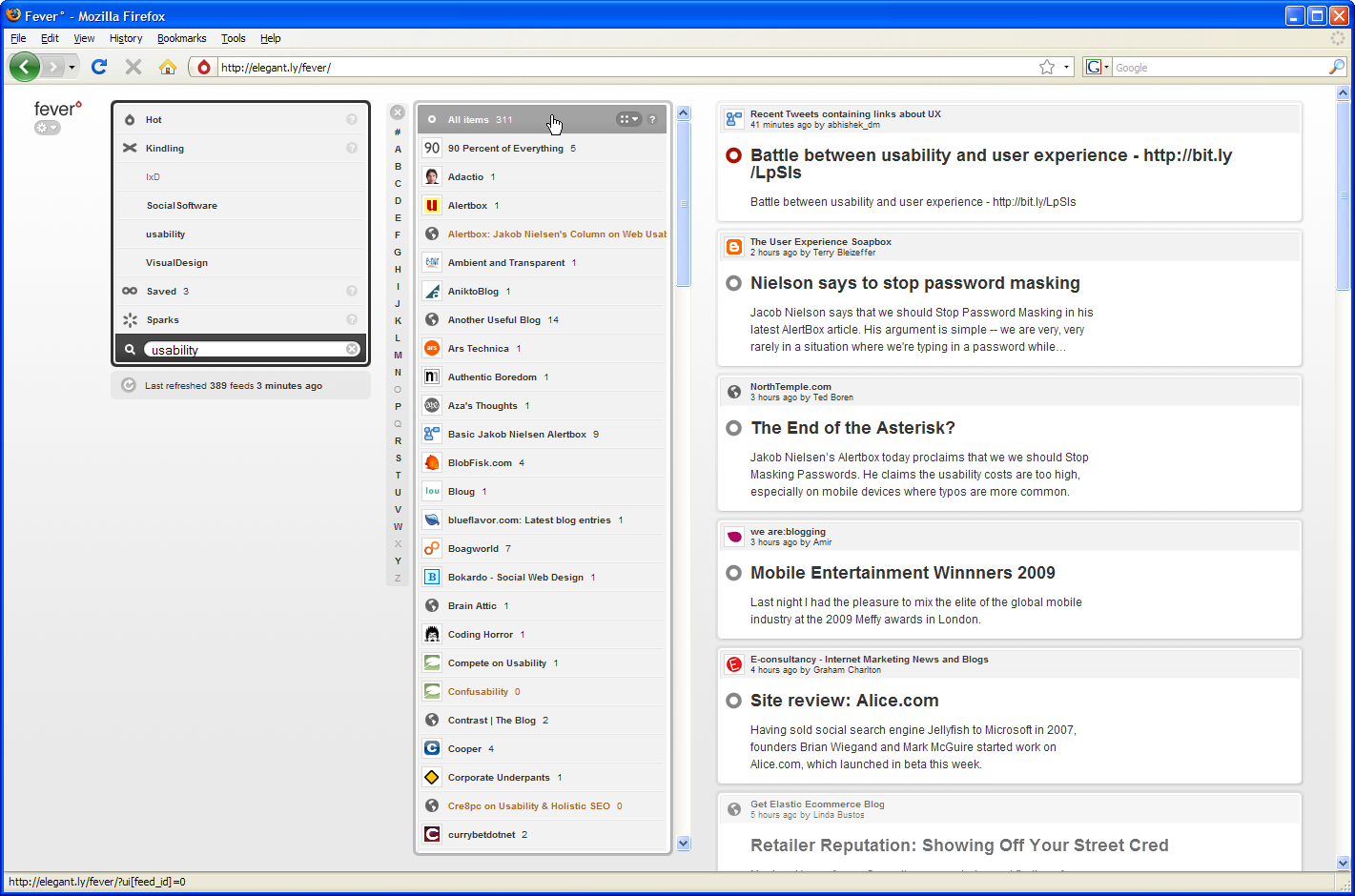
The search results view. Here I’ve searched for “usability” and it’s returned the matching articles in the middle column.
Footnote: I misspelled Shaun’s name as Sean in the original post. Thanks to Ryan for pointing this out -I’ve now corrected it. Sorry Shaun!
It’s Shaun not Sean.
Thanks Ryan – I’ve corrected that.
Speedwise it’s fine for me on Dreamhost. I just can’t seem to get the cron job working properly. Any tips?
I found the speed was fine until I put about 350 feeds into it. Having said that, yesterday I set it up to auto-refresh on cron jobs only, and it seems to have helped a lot. Here’s how to set up the cron job in dreamhost:
That’s exactly what I did but it didn’t seem to work.
Strange.
I thought I’d use the e-mail output to check what was happening and I got this
setlock: fatal: unable to lock /tmp/cronlock.963711.52083: temporary failure
I’ve now deleted the cron job and done it again. I’ll see what happens.
I did intially import my entire Google Reader export but then I decided that I’d use this as an excercise to trim down and work out what should be a spark and what should be a kindling.
So far so good. Thanks for running through that though. Good to know I was doing the right thing and that I’ve just got a problem on my server :)